
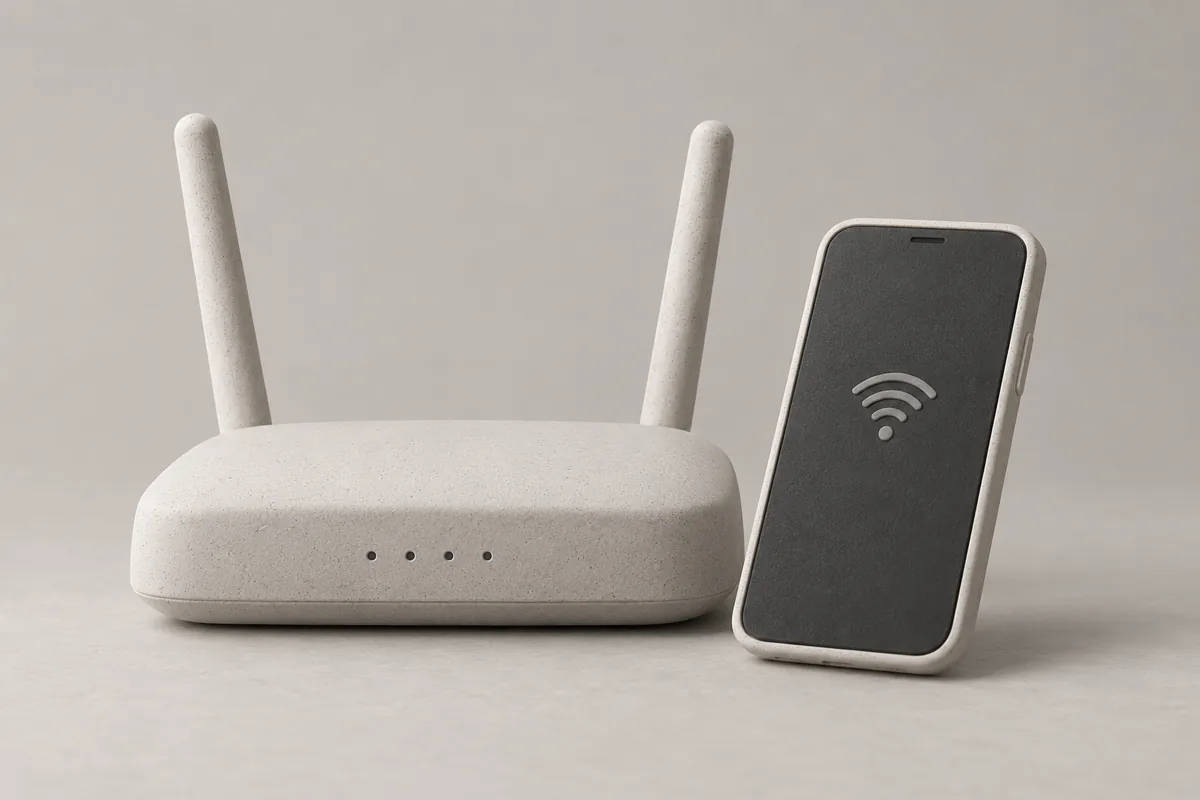
Check whether one device or every device is affected
A Wi-Fi connection indicator does not necessarily mean internet access is working. Your device may be connected to the router while the internet connection beyond it has a problem. Also check whether the settings screen says there is no internet connection. [1]
First try opening different websites in a browser. If only a particular app or website fails, check whether that service has an outage. If no pages open, connect another phone or laptop to the same Wi-Fi and compare the results. [4]
If other devices work and only yours fails, start by checking reconnection. If every device on that Wi-Fi fails, check the modem and router at home, or the login screen in a café or accommodation. This comparison cannot conclusively locate a fault, but it helps narrow the checks.
When comparing phones, check whether a phone is actually using cellular data. Features such as Wi-Fi Assist on iPhone can use cellular data when Wi-Fi is unstable. Do not treat a page loaded through mobile data as evidence that Wi-Fi is working. [2]
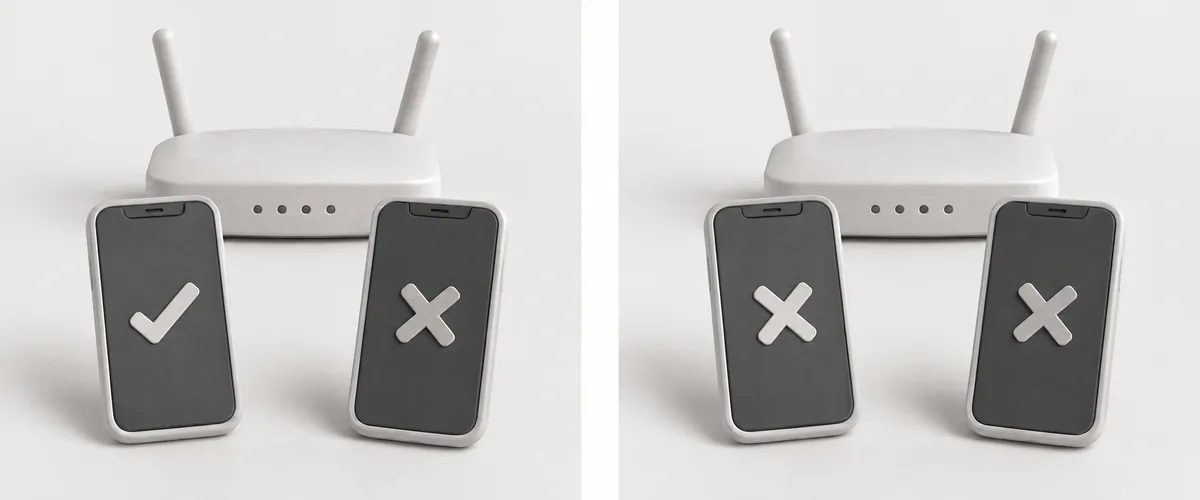
Reconnect to Wi-Fi and restart the device
Reconnect to Wi-Fi and check that you selected the intended network. Look for a different network with a similar name. On iPhone and iPad, you can check the mark next to the connected network in Settings → Wi-Fi. [2]
If reconnecting does not change the symptoms, save any work and restart the device. Check again in the browser after each step instead of changing several settings together; this makes it easier to see which action affected the result. [1]
On a Windows 11 laptop, you can run the Network and Internet troubleshooter in the Get Help app. To forget a saved Wi-Fi network and reconnect, go to Settings → Network & internet → Wi-Fi → Manage known networks, select the network, and choose Forget. Make sure you know the password before removing it. [1]
These menu names follow the official English guidance. Names and locations may vary by operating system version or device settings, so consult the relevant device guide in the sources below if your screen differs.
At home, restart the modem and router in order
If several devices on the same Wi-Fi all fail, inspect the modem and router’s power and connections. Restarting them will interrupt internet access for everyone using them, so check whether anyone is connected first. [1]
If the modem and router are separate, unplug their power cables and wait at least 30 seconds. Connect the modem’s power first, wait for its status lights to settle, then connect the router. Allow a few minutes for both to start and become ready before trying again. If the modem and router are combined, restart that single device. [1]
If a device’s lights stay on after you unplug it, check the restart instructions for that model. Leave the RESET button on the back out of this check.
If no devices can access the internet after the restart, ask your internet service provider to check the connection. Several devices failing may indicate a service problem, but that alone does not establish whether the router or the line is faulty. [2]
Check the login screen on café or hotel Wi-Fi
Some public Wi-Fi networks require a login or acceptance of terms after you select the network. Choosing its name does not necessarily complete the connection process. [3]
On iPhone or iPad, open Settings → Wi-Fi, tap the network’s name, and wait for a login screen. If none appears, tap the More Info button next to the network and choose Join Network. [3]
If you canceled the login screen or chose Without Internet, the Wi-Fi connection may not provide internet access. Check the required connection steps and any charges. If the screen still does not appear, ask staff or the network administrator. [3]
Test another network before resetting settings
Compare how your device works on Wi-Fi in another location. If the problem occurs on only one network, the next step is to report the symptoms to that network’s administrator or internet service provider. If the same device keeps failing on several networks, check the device manufacturer’s guidance. [4]
Reset Network Settings on iPhone and iPad resets saved Wi-Fi networks and passwords, along with cellular, VPN, and APN settings. Consider it when other methods have not helped, and contact the administrator first if the device was configured by your school or employer. [2]
When asking for help, note when the problem began, which devices fail and which work, any onscreen messages, whether other Wi-Fi networks work, and what changed after restarting. Including these conditions with your report helps avoid repeating the same checks.
This guide is based on the official documents below. The numbers in the text correspond to the sources at the end. Identify how broadly the problem occurs, then follow the guidance appropriate to those results instead of continuing to change settings.